📑 Table of Contents
What Does “Optimize PDF” Mean?
Why Optimize PDFs?
How PDF Optimization Works
Step‑by‑Step: Use toolsMPro Optimize PDF
Other Free PDF Optimization Tools (2025)
Pro Tips for Best Results
Privacy & Security Notes
Common Errors & Fixes
Conclusion
Optimize PDF
Reduce PDF size & improve quality
Drop PDF files here
1. What Does “Optimize PDF” Mean?
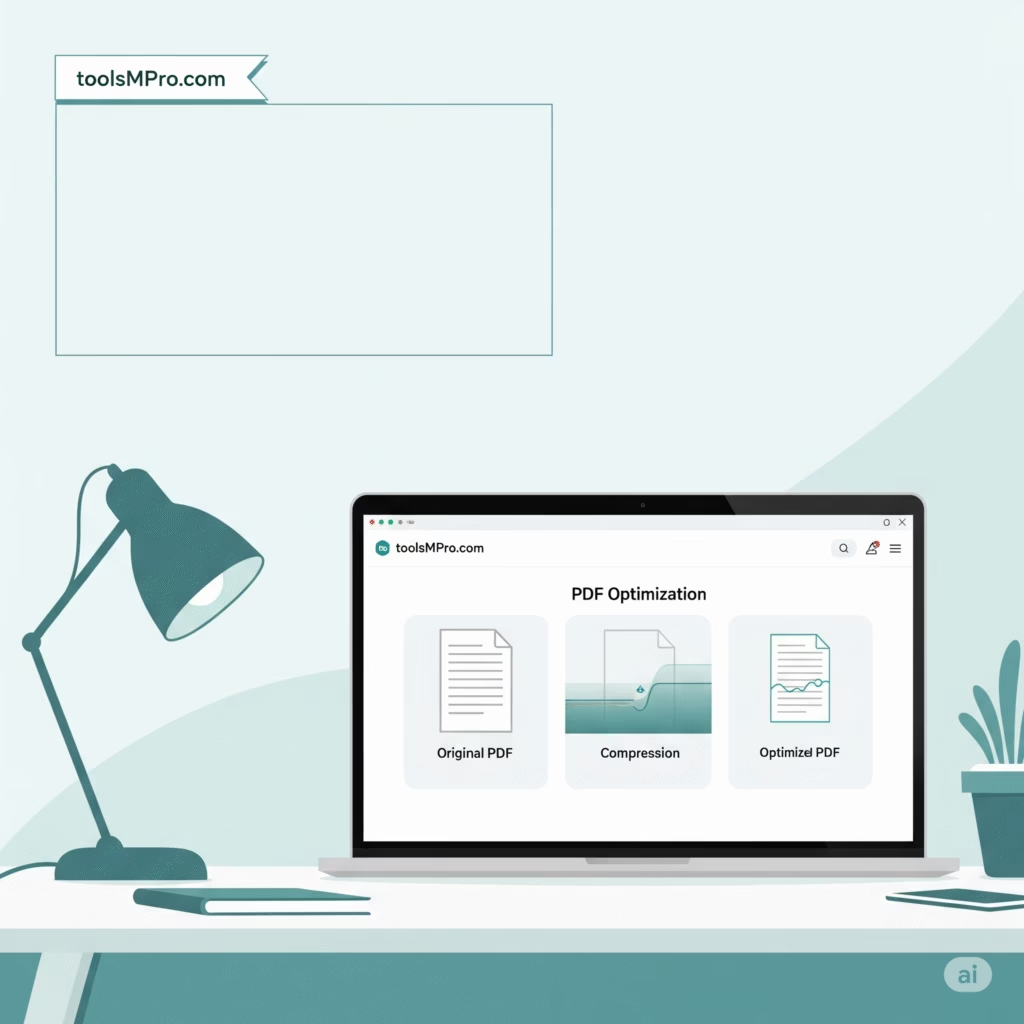
“Optimize PDF” means making a PDF file smaller and faster. Imagine shrinking a big poster so it fits neatly in your backpack—PDF optimization does that with your documents.
2. Why Optimize PDFs?
| Benefit | Why It Matters |
|---|---|
| 📤 Fast Upload | Send PDFs easily via email or WhatsApp |
| 📦 Less Storage | Save space on your phone or computer |
| 🌍 Quick Sharing | Share files over slow internet |
| ⚙️ Speedy Opening | Load faster on all devices |
| ♻️ Eco-Friendly | Use less data and storage power |
3. How PDF Optimization Works
Image Compression – reduces pictures’ resolution
Font Subsetting – embeds only used letters
Remove Redundancy – deletes duplicate data
Clean Data Streams – removes hidden metadata
Save Optimized PDF – smaller but readable
4. Step‑by‑Step: Use toolsMPro Optimize PDF Tool
Open 👉
https://toolsmpro.com/top-pdfs-tools/#optimize-pdfUpload your PDF
Choose compression level (High/Medium/Low)
Click Optimize PDF
Download new smaller PDF
Compare sizes—see the difference!
Free, secure, no signup—done in seconds
5. Other Free PDF Optimization Tools (2025)
| Tool & Link | Highlight | Platform |
|---|---|---|
| toolsMPro Optimize PDF | No limits, no sign-in | Web |
| Adobe Online Compress | Trusted brand, quality | Web |
| Smallpdf Compress | Clean UI, batch | Web |
| ILovePDF Compress | Fast drag-drop | Web |
| PDF24 Compress | Offline desktop app | Web/Desktop |
6. Pro Tips for Best Results
Choose High quality for photos, Medium for text files
Preview PDF before compressing important docs
For invoices, use Black & White mode
Always keep a backup original
After compression, open PDF to ensure readability
7. Privacy & Security Notes
toolsMPro uses HTTPS and auto-deletes file after 1 hour
For sensitive files, use offline apps like PDF24 Desktop
Don’t upload financial or medical documents unless needed
8. Common Errors & Fixes
| Error | Cause | Fix |
|---|---|---|
| Text blurry | Too much compression | Use Medium compression |
| File too big | Original had high-res images | Crop images before upload |
| Won’t upload | Browser issues | Try Chrome or Firefox |
| PDF won’t open | Corrupted during compress | Re-upload original and try again |
9. Conclusion
Optimizing PDFs makes them easy to share, fast to open, and space-saving. toolsMPro’s Optimize PDF tool is the simplest, fastest way—no installs, no signup. Try it now and shrink your PDFs in seconds!