Table of Contents
What is Organize PDF Converter?
Why Use an Organize PDF Converter?
How Does It Work?
Simple Steps to Organize Your PDF
Amazing Benefits
Things You Should Avoid
Best Tools to Use
Organize PDFs on Mobile
FAQs
Final Wrap-up
1. What is Organize PDF Converter?
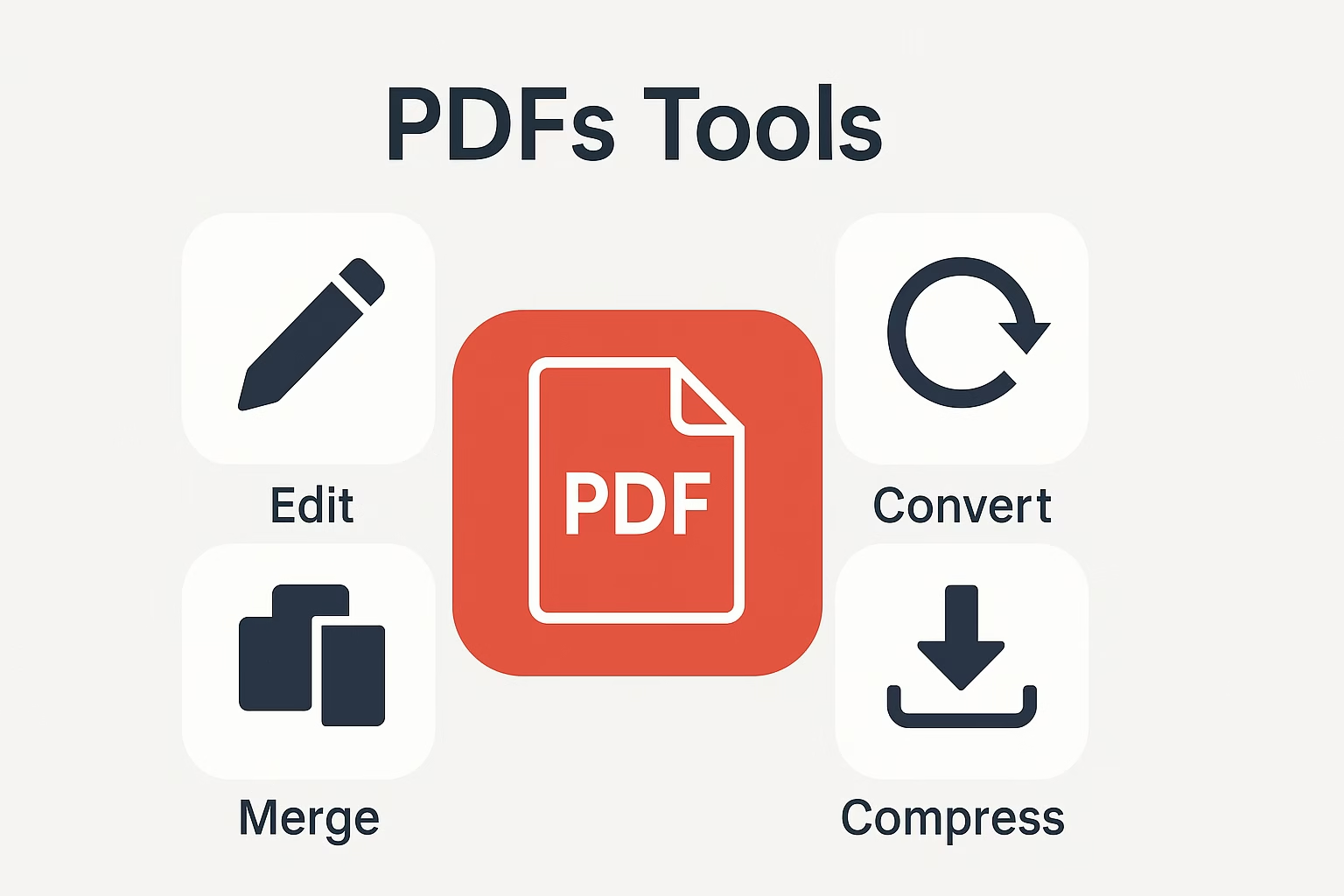
Organize PDF Converter is a tool that lets you fix the order of pages in a PDF. You can:
Rearrange pages
Delete extra ones
Rotate pages
Add new PDFs
Think of it like puzzle pieces — you get to put them in the right order!
2. Why Use an Organize PDF Converter?
To fix page order
Remove blank or wrong pages
Combine two or more PDFs
Rotate pages that look sideways
Perfect for school projects, office reports, or ebooks!
3. How Does It Work?
Imagine your PDF is a stack of printed pages. Organizing it means:
Dragging page 5 before page 1
Throwing away blank pages
Turning upside-down pages right side up
Just click, drag, drop — done!
4. Simple Steps to Organize Your PDF
Step 1: Upload your PDF to the Organize PDF Converter tool.
Step 2: Use the preview to drag pages around.
Step 3: Delete, rotate, or combine with other PDFs.
Step 4: Click Save or Download.
That’s it! Like organizing LEGO bricks.
5. Amazing Benefits
 Clean, professional PDFs
- Perfect print-ready documents
- Easier to read & follow
- Less confusion for readers
- Ready for sharing on email or cloud
 Clean, professional PDFs
 Perfect print-ready documents
 Easier to read & follow
 Less confusion for readers
 Ready for sharing on email or cloud
6. Things You Should Avoid
Don’t delete important pages by mistake
Don’t rearrange without checking the flow
Use trusted tools — no shady websites
7. Best Tools to Use
Adobe Acrobat (Pro version)
SmallPDF
iLovePDF
PDFCandy
These tools are like scissors and glue — but for your digital papers.
8. Organize PDFs on Mobile
On Android: Try Xodo PDF, iLovePDF app
On iOS: Use PDF Expert or the online version
Quick Tip: Zoom into pages to see what you’re organizing.
9. FAQs
Q: Can I organize a scanned PDF? A: Yes, but make sure it’s not a single image. Use OCR if needed.
Q: Will my data be safe? A: Always use tools with HTTPS and privacy guarantees.
Q: Can I merge two PDFs and organize them together? A: Absolutely!
10. Final Wrap-up
With the Organize PDF Converter, messy files become masterpieces. You’re not just saving time — you’re creating order. Whether for homework, business reports, or digital books, it’s the digital organizer you didn’t know you needed.
Try it once — and you’ll never want to go back to cluttered PDFs!